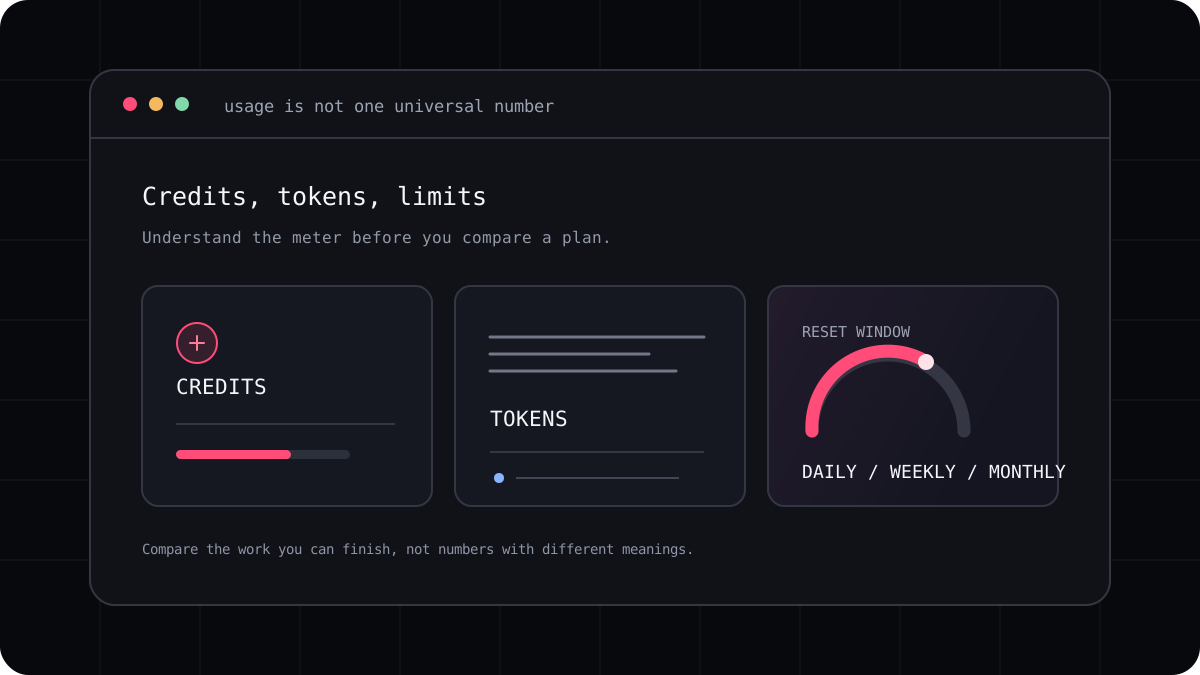
Claude Code does not have one universal usage limit for every account. The limit depends on whether you sign in with a supported Claude plan or use API billing, and plan usage can be shared with Claude. The details also change over time. This guide explains what to check before a long coding session and how to avoid relying on a made up number of prompts per day.
Claude subscription use and API use are different
When Claude Code is connected to a Claude Pro or Max plan, usage is governed by the plan’s Claude Code conditions. Anthropic says usage is shared with Claude and subject to rolling five hour and weekly limits. The account’s current limit can depend on how much work you have done, the model, and the size or complexity of the session.
If Claude Code is configured to use an Anthropic Console API key, API billing applies instead. That is a separate billing path. Check your environment and sign in method before estimating cost, because the same command line tool can be associated with different account limits.
| Access path | How usage is handled | What to check |
|---|---|---|
| Claude Pro or Max plan | Plan limits can be shared with Claude and include time based windows | Current plan terms, model, remaining window, and account status |
| Anthropic Console API key | API usage is billed according to API pricing | Selected model, input and output use, spend controls, and API dashboard |
| An organization or managed account | Workspace settings and agreements may affect access | Admin policy, account type, and approved usage terms |
Check status before the session becomes urgent
Claude Code provides a `/status` command that can show account and usage information. Run it when you begin a longer task and again if a limit message appears. Also check Anthropic’s current support article because plan access, reset windows, and available models can change.
Avoid planning by a fixed number of prompts. A short question and an agent that reads many files, runs commands, and revises a patch use different amounts of capacity. Anthropic’s published conditions are more useful than a forum post claiming that every account receives the same number of messages.
- Confirm whether Claude Code is signed in through a Claude plan or an API key.
- Run `/status` and note the current account and usage details.
- Check the live plan page for shared usage and reset terms.
- Save a project checkpoint before a task that may take multiple sessions.
Make the session easier to finish within a limit
Give Claude Code a narrow goal, the expected behavior, and the check that proves the change. Ask it to inspect the relevant files and suggest a plan before editing. If the work is broad, divide it into stages that leave the project in a runnable state.
When a limit interrupts work, keep the summary concrete. Record the files changed, the command that failed, the remaining step, and whether the current diff passes tests. A clear handoff reduces repeated exploration when your access resumes.
A prompt to adapt
Inspect the smallest set of files needed to fix this issue. Before editing, explain the likely cause and the test that will confirm it. Keep the change focused. At the end, list files changed, commands run, test results, and any remaining risk.When a different terminal plan is worth comparing
If your main concern is the Claude Code workflow, check the current Pro and Max terms first. If you want to compare other model families, account paths, or subscription structures, run the same small repository task in another tool and compare the accepted patch rather than the headline allowance.
LucentraCode offers a multi model terminal workflow with its own published plan rules. It is a comparison option for developers who want that choice in one CLI. Review the supported models and live plan conditions before switching, since a credit figure from another product does not translate directly to Claude usage.