The best vibe coding tool for a beginner is the one that matches the way you want to learn and build. Some tools create an app in a browser and manage more of the setup for you. Others work in an editor or terminal and expose the project files directly. A beginner can start in either place, but the tradeoffs are different.
Choose the kind of workspace first
A browser based app builder is comfortable when you want to describe an idea, see a preview, and make changes in one place. An IDE or editor assistant can help while you work inside a familiar project. A terminal coding agent can inspect a repository, edit files, and run the commands that already belong to it. Before comparing brand names, decide whether you want the tool to manage the project environment or work alongside you in it.
Products also count usage in different ways. Bolt lists a token allowance and notes that project size affects use. Lovable describes daily build credits and separate Cloud and AI grants. Replit offers app building through its Agent experience and publishes plan specific usage details. Antigravity provides a CLI with plan based rate limits. A free plan in one product is not directly comparable to a free plan in another.
| Starting point | Examples to explore | A good fit when |
|---|---|---|
| Build and preview in a browser | Bolt or Lovable | You want to see an app quickly and prefer a managed workspace |
| Build inside an app platform | Replit Agent | You want creation, code, and a hosted project in one environment |
| Work from a project directory | Antigravity CLI or another coding CLI | You want to learn the codebase and use terminal commands directly |
| Add help to an editor routine | GitHub Copilot or another IDE assistant | You already have a project and want help while editing it |
Questions to ask before signing up
Can you export or use the code outside the service? Where does the app run? Which features use credits? What happens when the free allowance runs out? Can the agent show a diff or a clear change history? The answers matter more than a polished demo because they affect how you learn, share, and maintain the result.
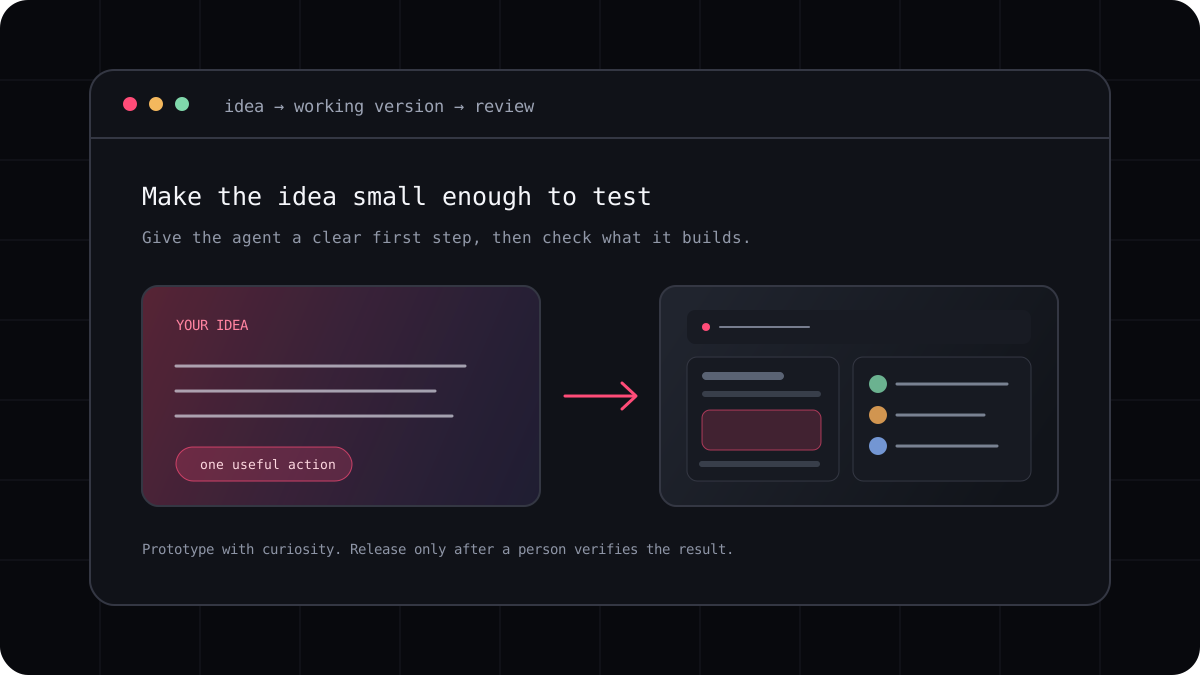
Try the free option with one project rather than opening accounts everywhere. Build a small form, make its main action work, refresh it, and inspect how the data is stored. Keep a note of where the workflow feels clear and where you needed an explanation.
- Read the code ownership, export, and project privacy terms.
- Check current limits, reset windows, and extra usage rules.
- See whether hosting and database use are included or billed separately.
- Look for a way to review changes before accepting them.
Our practical shortlist
For a visual first experiment, start with a browser builder such as Bolt or Lovable and keep the first app small. If you want an app platform with an integrated agent and runtime, compare Replit’s current experience. If you want to understand a repository and run its existing tests, try a terminal agent. If your project already lives in an editor, an IDE assistant may fit without moving your work.
That is a workflow shortlist, not a claim that one product is objectively best for every beginner. The products update quickly, and their free limits change. Read the live vendor pages linked below, then keep the tool that helps you finish a small project and understand what it made.
- Choose one tool based on the workspace you want.
- Build one small app with an action you can test yourself.
- Check export, deployment, privacy, and usage before adding real data.
- Try a second tool only if the first one misses a clear need.
When a terminal CLI is the better next step
A browser builder can get an idea on screen quickly. A terminal tool becomes more useful when you want to work with an existing codebase, run project commands, inspect a diff, and decide exactly when changes are applied. You do not need to choose that on day one, but learning the terminal gives you a clearer path from prototype to maintained software.
LucentraCode is one option for that terminal workflow. Compare its supported models and plan conditions with the tools you already use, then try a small change in a project you can safely inspect.