Many developers already keep VS Code open while working in a terminal. You can use that editor to inspect files and diffs while a coding CLI runs from the project directory. This is different from installing an editor extension: the CLI and extension may have separate permissions, model access, and context behavior.
Choose the workflow you are actually setting up
An editor agent can use editor context and show changes beside the file. A CLI runs as a terminal program, so it can fit into shell commands and a repository workflow. Some products provide both surfaces. Check the current product documentation before assuming that a CLI has a dedicated VS Code extension or shares settings with one.
For a terminal workflow, open the repository folder in VS Code, start its integrated terminal, and check that the shell is at the intended project root. Follow the CLI provider’s current install and login instructions. Use a disposable repository first if you are learning how its file and command permissions work.
Keep the editor useful for context and review
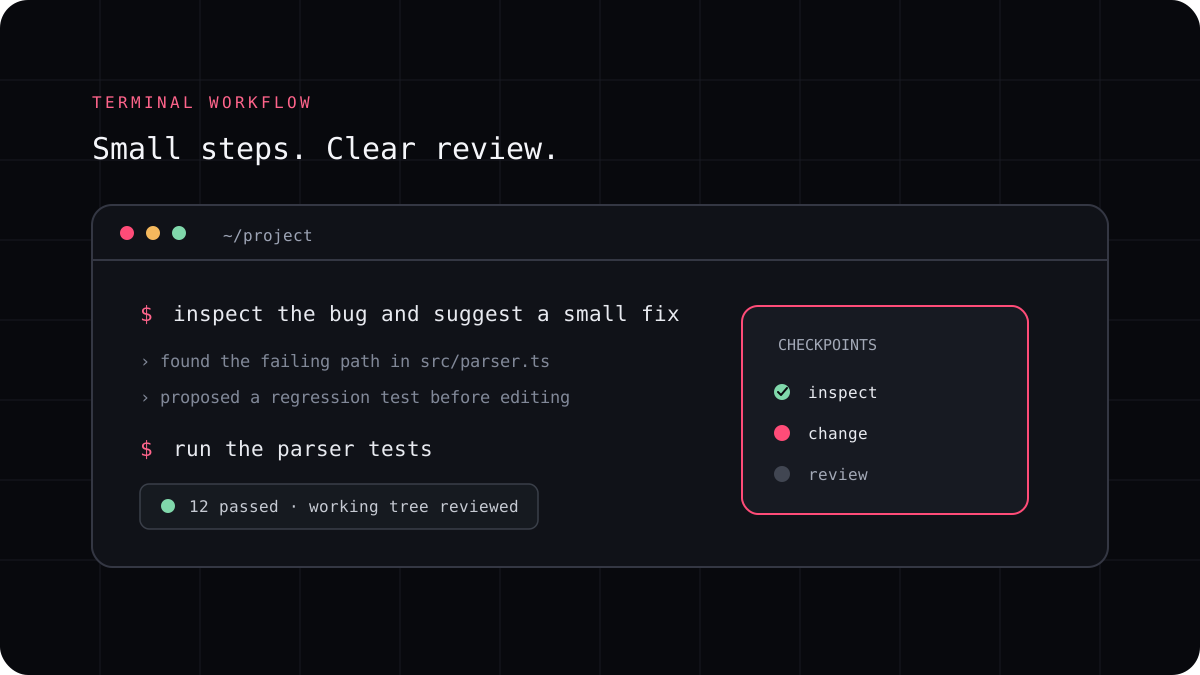
Ask the agent to inspect the project instructions and identify the files it expects to change. Keep the relevant source, test, and terminal output visible in the editor. If the task involves an unfamiliar part of the codebase, ask for a short explanation before authorizing edits.
After the agent changes files, review the source control diff in VS Code. Check that the patch matches the request, that it did not overwrite unrelated work, and that tests cover the behavior. Read each command proposed by the tool before you allow it to run.
- Open the correct repository and confirm the terminal path.
- Give the agent one task and a visible acceptance check.
- Inspect the changed files and source control diff.
- Run the project checks and record anything that remains unverified.
A practical fit for LucentraCode
LucentraCode is a terminal coding CLI, so you can keep your preferred editor open while you use its documented command line workflow. Check the current quickstart and command reference for installation, sign in, and the command you intend to run. Do not assume the editor automatically supplies context to a separate terminal process.
If you want an editor extension with inline suggestions or editor managed context, compare that product as a separate workflow. The right choice can be a CLI, an IDE assistant, or both for different tasks.