A development container can give every contributor the same language runtime, packages, and project tools. That can make a coding agent easier to reproduce across a team. A container is still part of your development environment, so decide which files, credentials, network services, and host resources it can reach before you run an agent inside it.
Use the container to make project setup repeatable
A Dev Container configuration describes a development environment that a compatible tool can start from. It can define a base image, installed tools, forwarded ports, and setup commands. Read the configuration before opening it, especially when it comes from a repository you do not control.
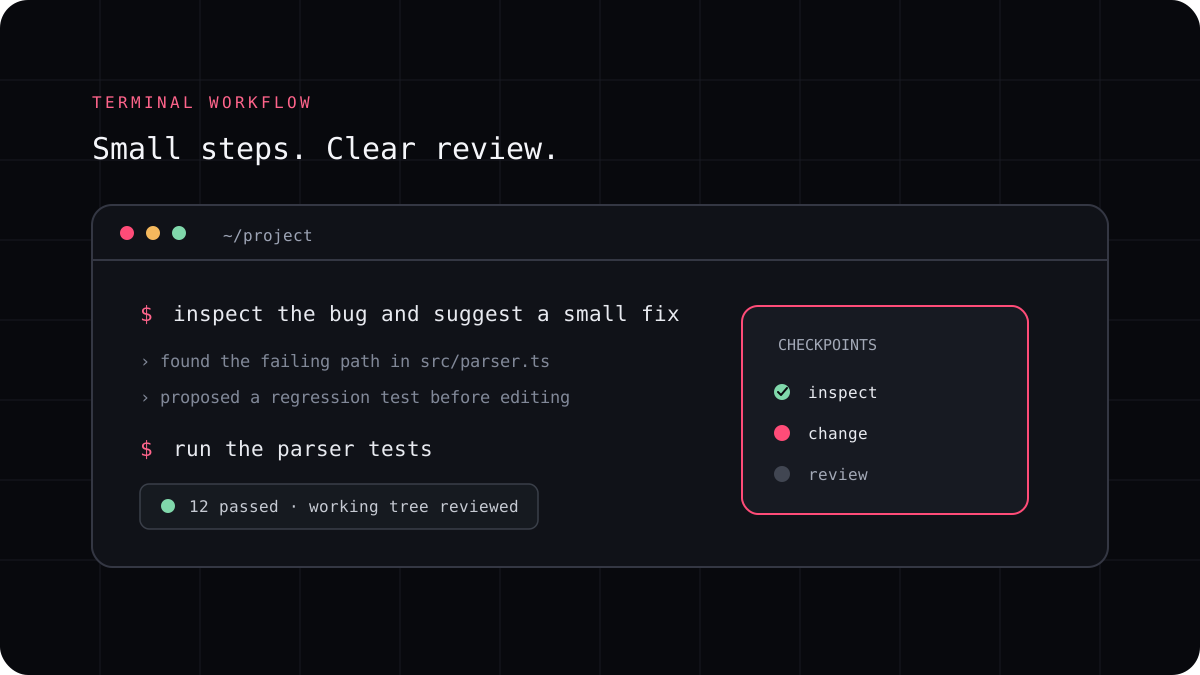
Install or invoke the AI coding CLI in the environment that matches the project’s actual toolchain. Confirm the working directory, runtime versions, and package manager before asking it to change code. The same command should work for a person and for the agent wherever practical.
Do not treat a container as automatic isolation
A container can still have mounted files, environment variables, ports, and network access. Some configurations can reach the Docker socket or other host resources. Review what is mounted and which credentials are available. Do not expose a personal access token or production secret simply because the command runs inside a container.
For an unfamiliar repository, use a disposable workspace and limited credentials. Keep secrets out of the image and repository configuration. Ask the agent to explain any container or permission change before accepting it.
Make the result repeatable for another developer
Record the container configuration, CLI version, model, task prompt, and checks that were run. Review the patch on the host or in the editor, then rebuild the environment and repeat the project checks if the agent changed dependencies or setup files.
LucentraCode is used from a project terminal. Follow its current setup guide in the environment where you plan to run it, and check the provider and account terms that apply to the selected model. The container controls the development environment; it does not by itself decide where model requests are processed.
- Inspect the Dev Container configuration and mounted resources.
- Use a clean branch and the project’s documented setup commands.
- Keep authentication narrow and secrets outside the image.
- Review the diff, rebuild if needed, and run the same acceptance checks.