A merge conflict means Git cannot combine overlapping edits automatically. It does not tell you which side is correct. When an AI coding agent has changed files on a branch, first understand what changed on both sides, preserve unrelated work, and test the final combined result.
Pause and inspect the repository state
Before resolving a conflict, save any uncommitted work and check the current branch and Git status. Read the merge or rebase output to see which files conflict. If the agent is still running, stop it before asking another process to edit the same files.
Inspect the base, current branch, and incoming change. A conflict marker shows competing text, but the intended result may need parts from both sides or a different implementation. Do not ask an agent to accept “ours” or “theirs” across the whole repository without understanding the effect.
Resolve one file at a time and explain the intent
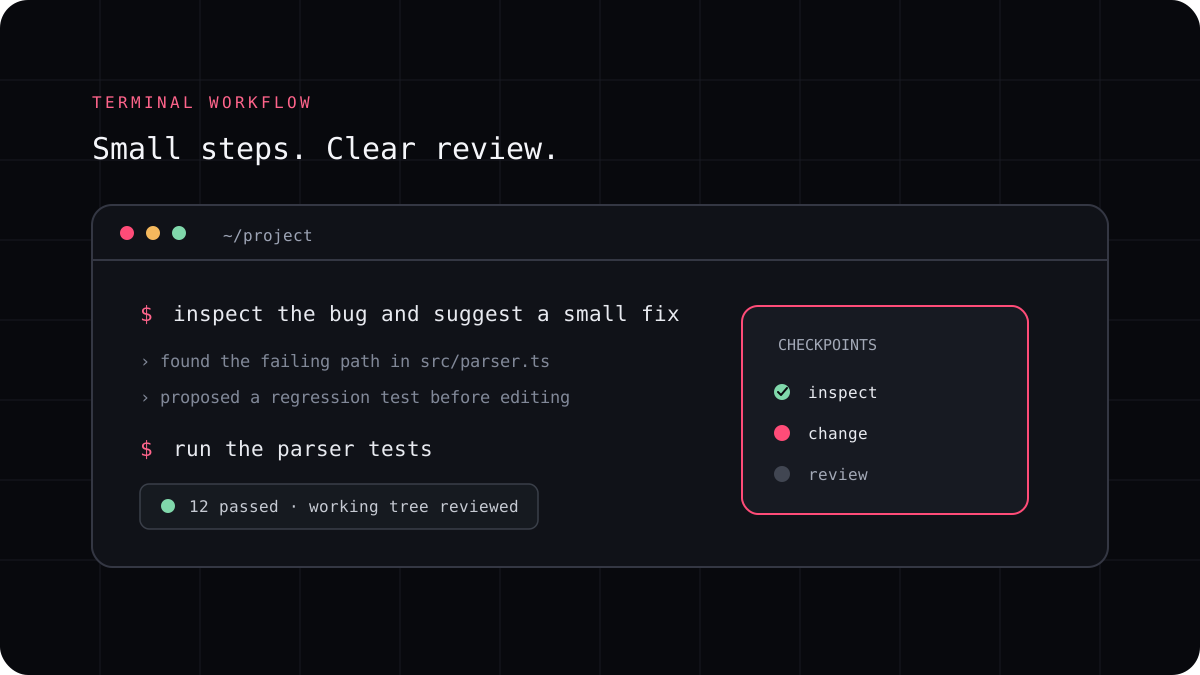
Open each conflicted file, compare the surrounding code, and decide which behavior must survive. Ask the agent to explain the changes on each side if that saves time, but make the final choice against the issue, tests, and current project design. Remove every conflict marker before continuing.
After resolving a file, inspect its complete diff rather than only the conflict block. A merge can compile while losing a nearby change. Keep the patch focused and avoid mixing a conflict resolution with an unrelated cleanup.
- Save work and confirm which branch and operation are active.
- Read both changes and the surrounding code before deciding.
- Resolve each file, then search for remaining conflict markers.
- Run tests and review the complete diff before committing.
Ask the agent for help without giving up control
A useful request names the conflicting files and asks for a comparison of both versions, the behavior each one represents, and a proposed combined result. Tell the agent not to discard either change and ask it to leave the resolution uncommitted for review.
If the merge becomes difficult to reason about, use Git’s abort or restore path documented for the operation and try again from a clean state. The safest recovery is the one that preserves a copy of your work before changing branches or resetting files.